Installation
Installing Cubby Image is a breeze; it's as easy as double clicking the provided .ccx file. To use Cubby Image you will need API keys to connect to the image model providers. We will show you how to do that – you will be ready to start creating in no time.
Prerequisites
Before installing Cubby Image, make sure you have:
- Adobe Photoshop 26.10.0 or later installed
- Adobe Creative Cloud Desktop app installed
- macOS or Windows computer
- Internet connection for API access
Installation Steps
1. Download the .ccx file
Download the plugin file (Cubby_Image_v_x_y_z.ccx) provided by the commerce platform.
2. Quit Photoshop
Before proceeding with installation, make sure Photoshop is completely closed.
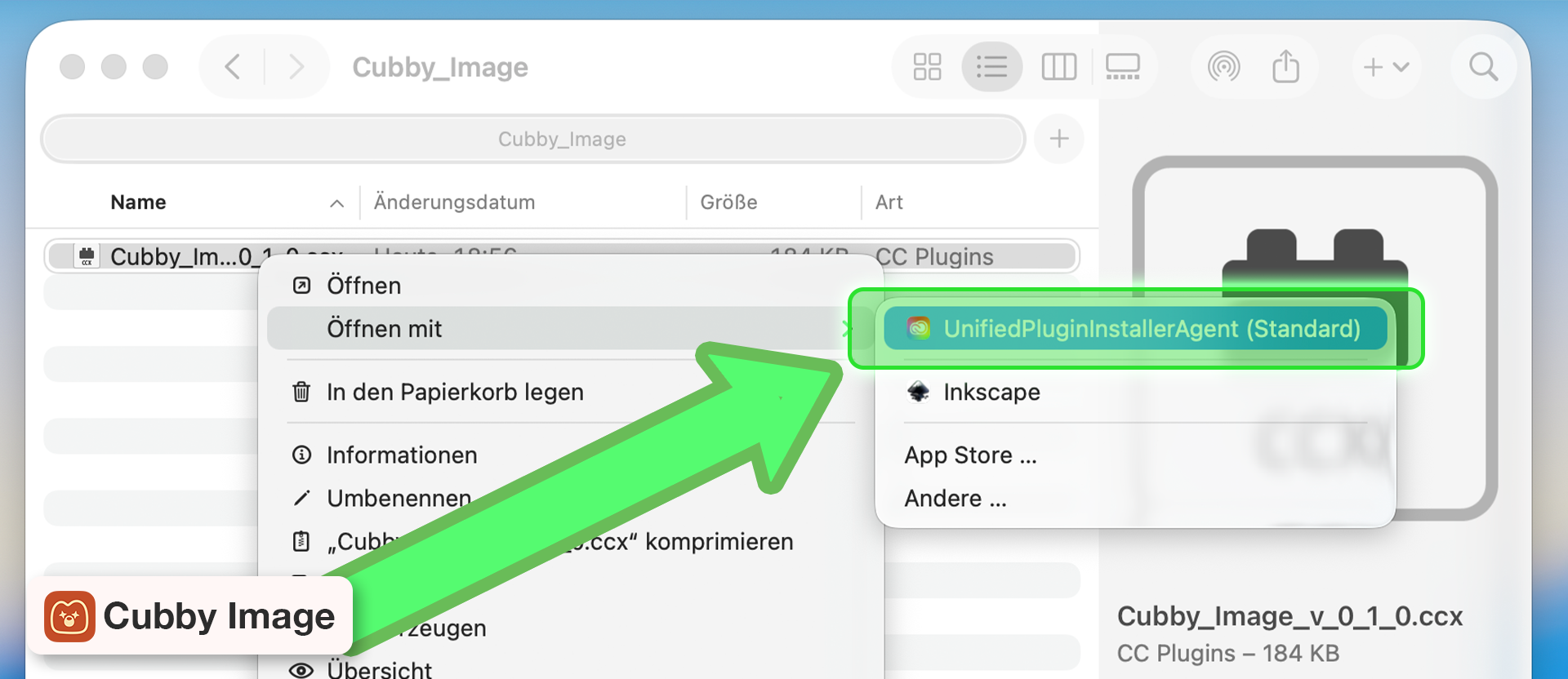
3. Open the .ccx file
Locate the .ccx file on your system and open it with Adobe's Unified Plugin Installer Agent (UPIA).
On most systems, simply double-clicking the file will launch UPIA.
4. Install the plugin
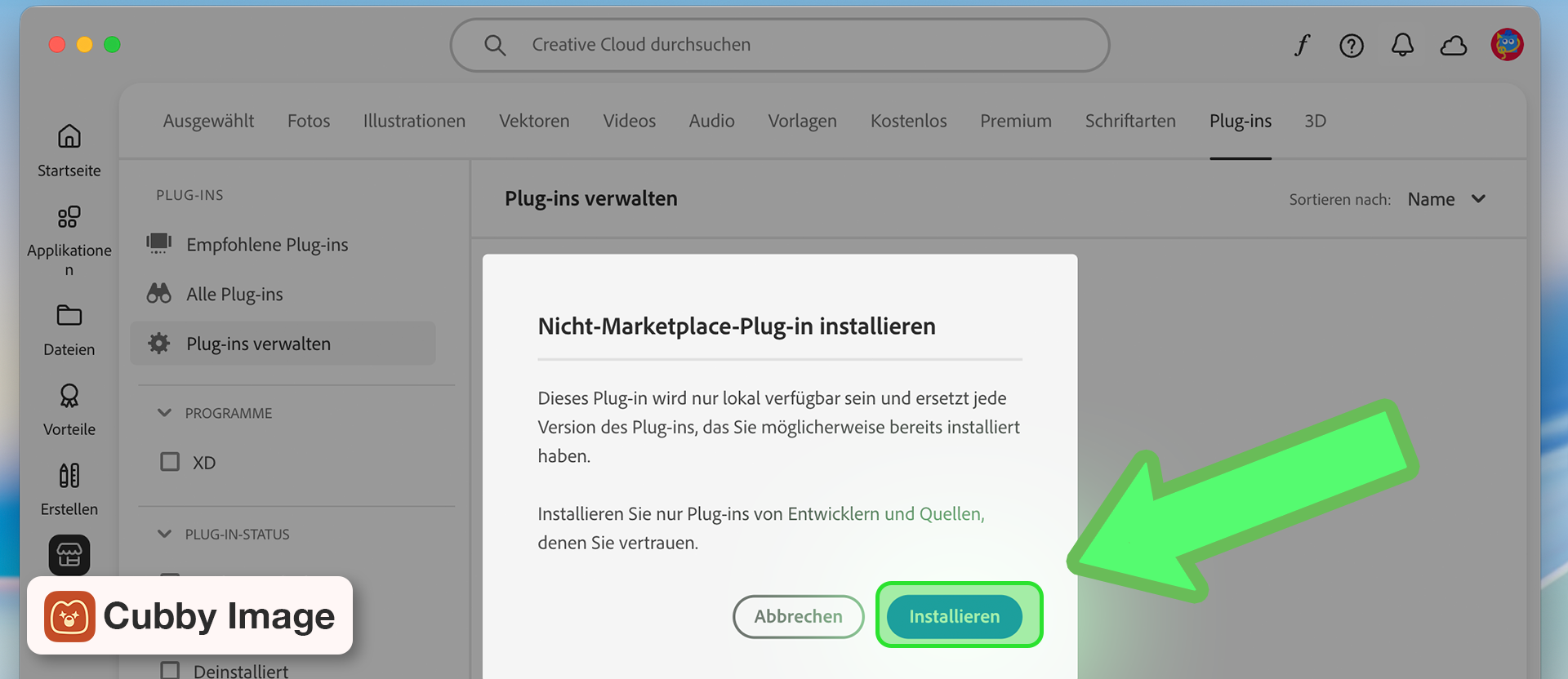
UPIA will prompt you to confirm installation.
Select Install.
5. Confirm installation
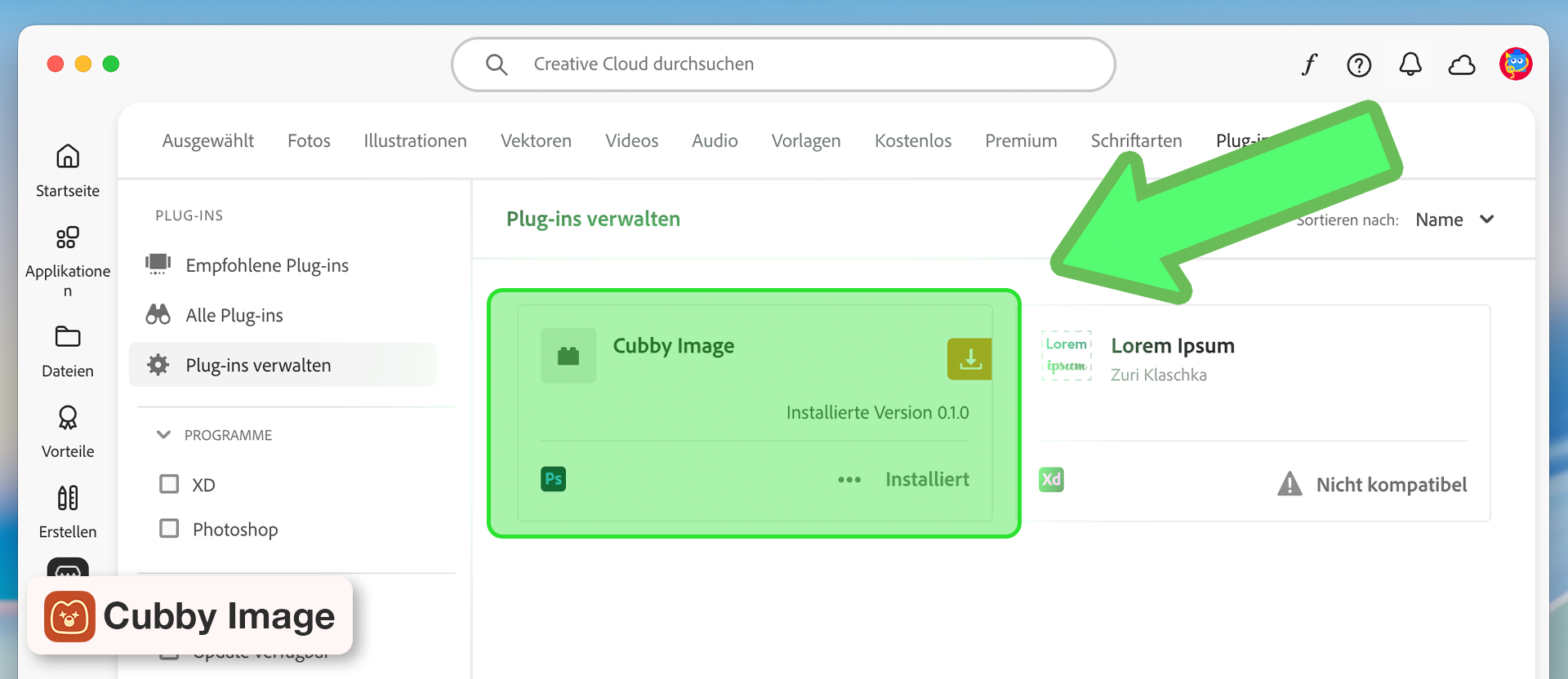
- Open the Creative Cloud Desktop App → Plugins → Manage Plugins
- Confirm that Cubby Image appears as installed
6. Launch Photoshop
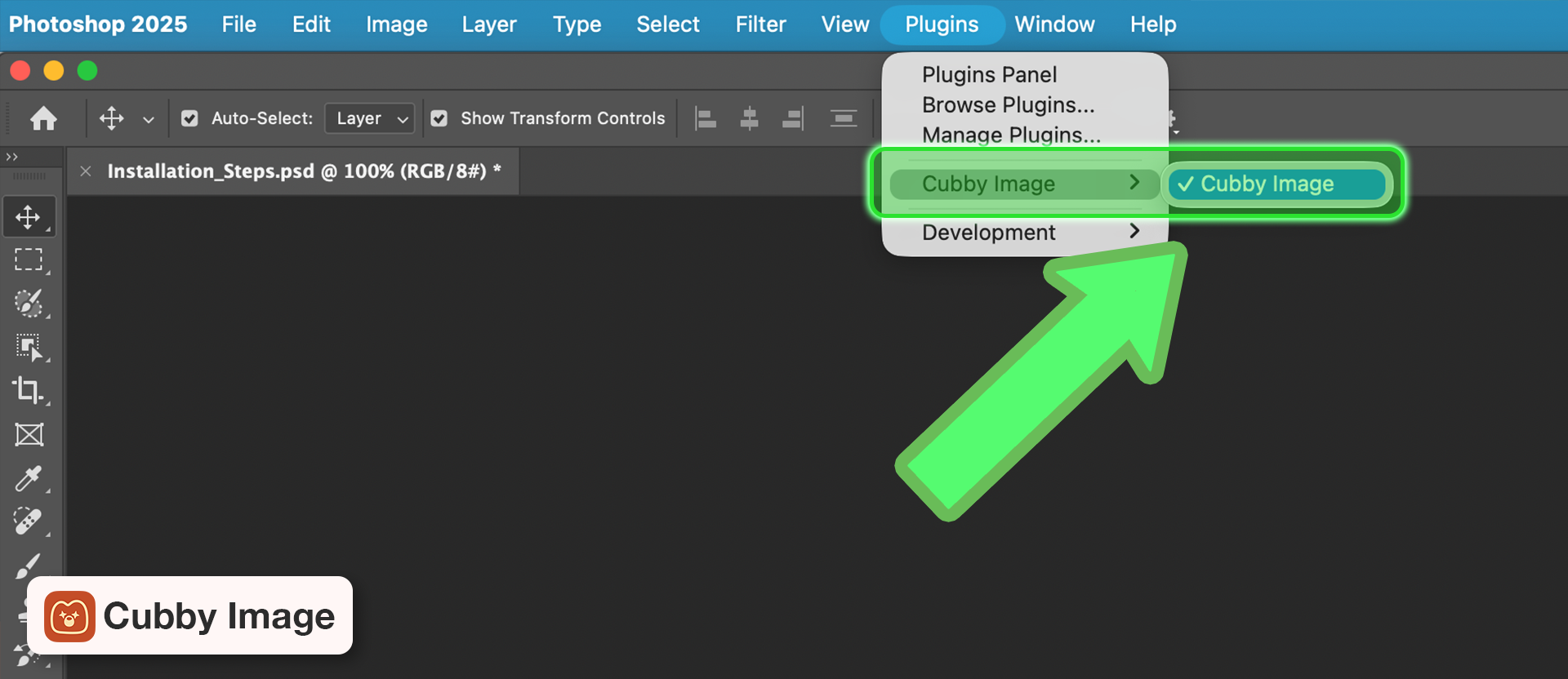
Start Photoshop and open the plugin via: Photoshop → Plugins → Cubby Image
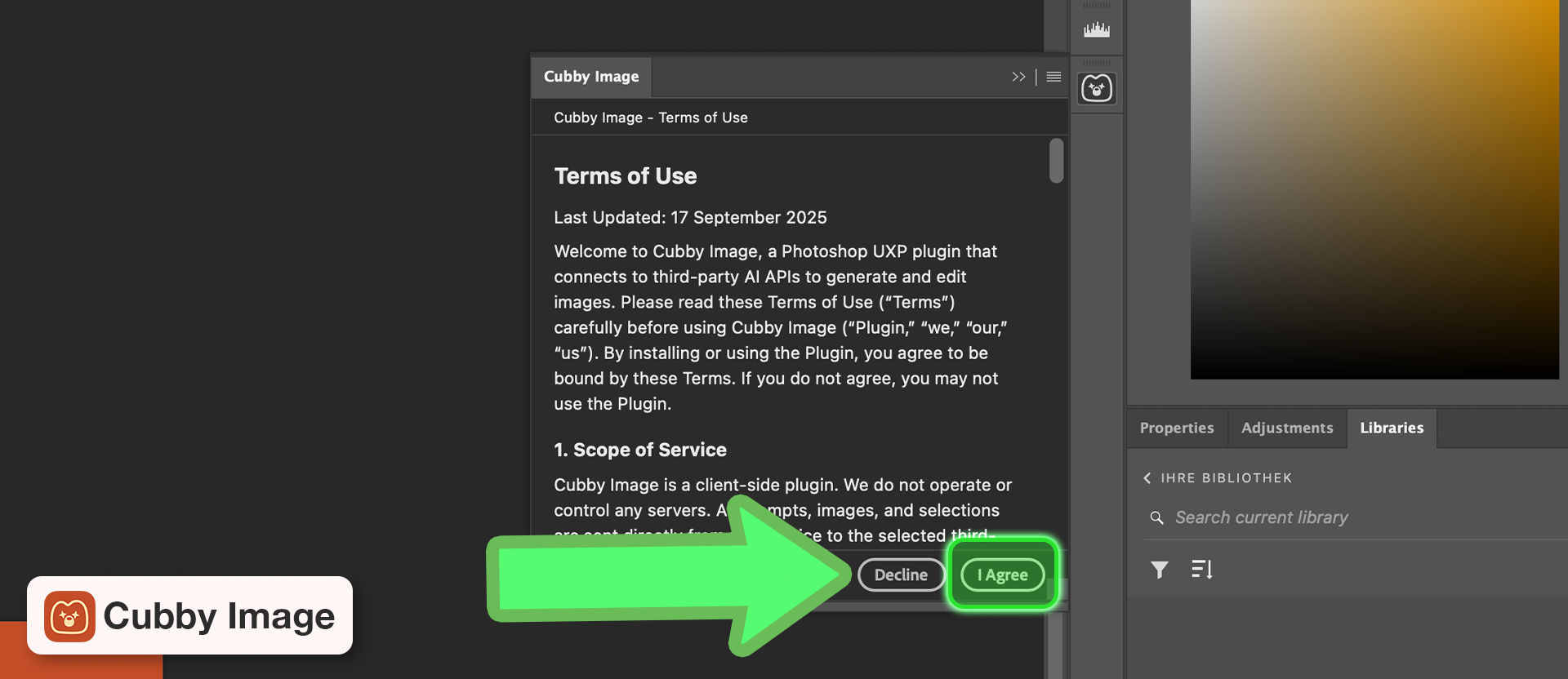
7. Accept the Terms of Use
On first launch, you will be asked to review and accept the Terms of Use.
Click I Agree to continue.
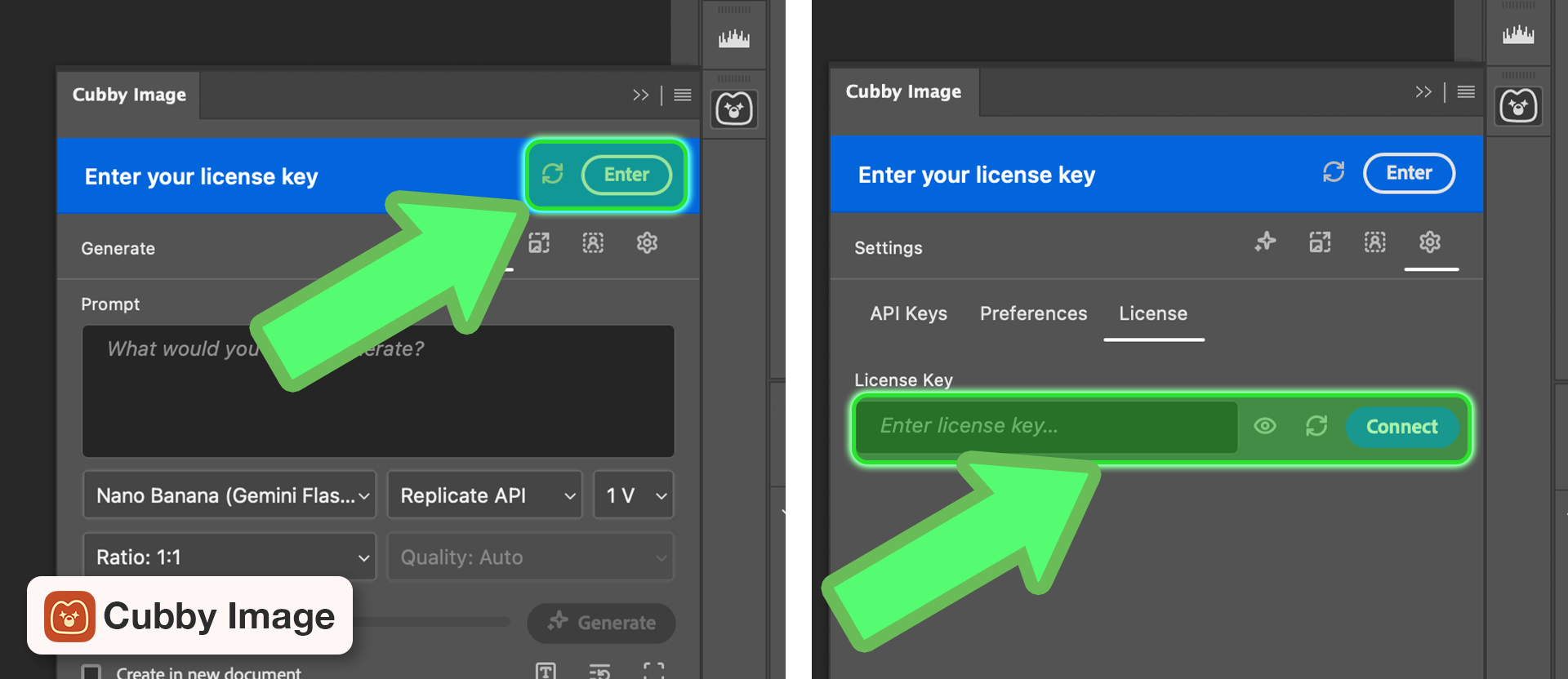
8. Enter your License Key
- Copy your License Key from Gumroad
- Click on 'Enter'
- Enter your License key and click 'Connect'
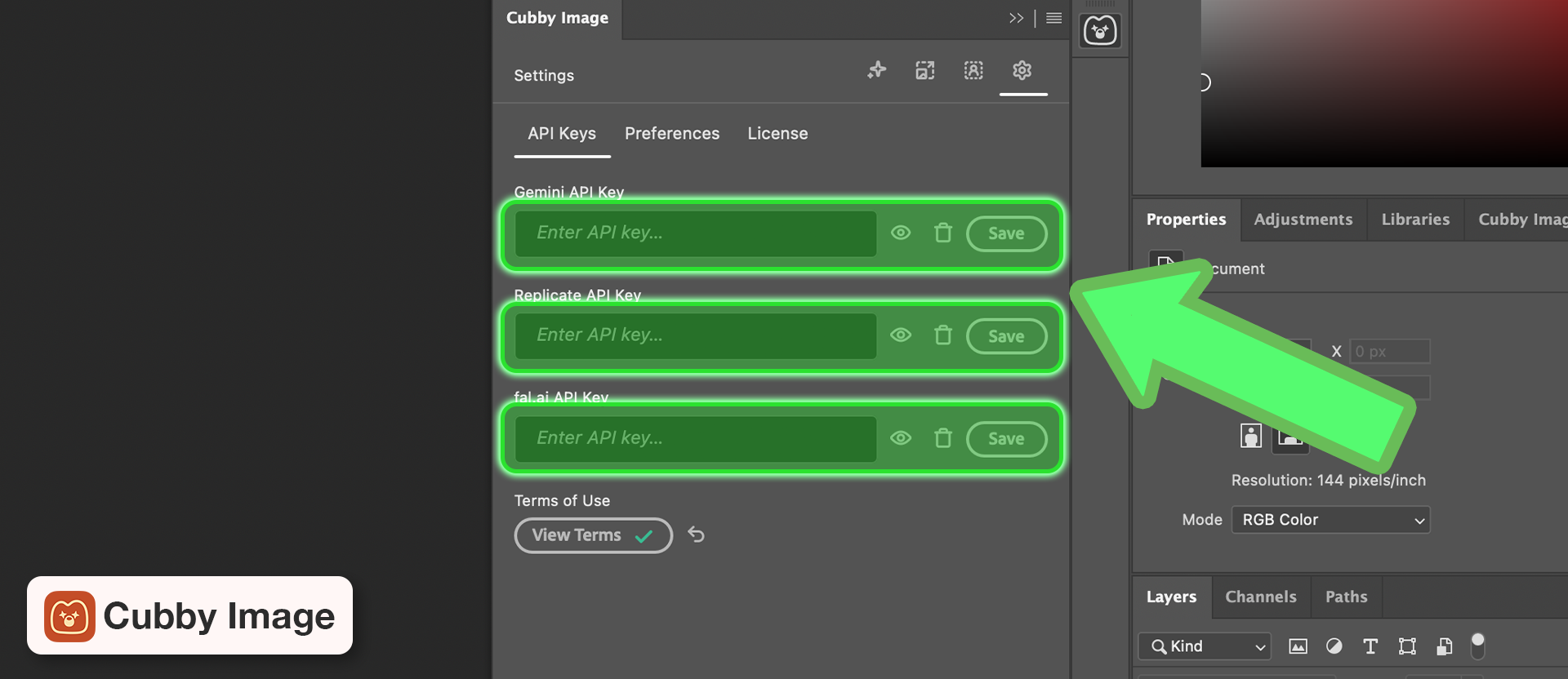
9. Enter your API keys
- Navigate to the plugin settings
- Enter your API keys (for example, Gemini or Replicate) and click Save
10. Start creating
Once configured, you're ready to generate images directly inside Photoshop with Cubby Image.
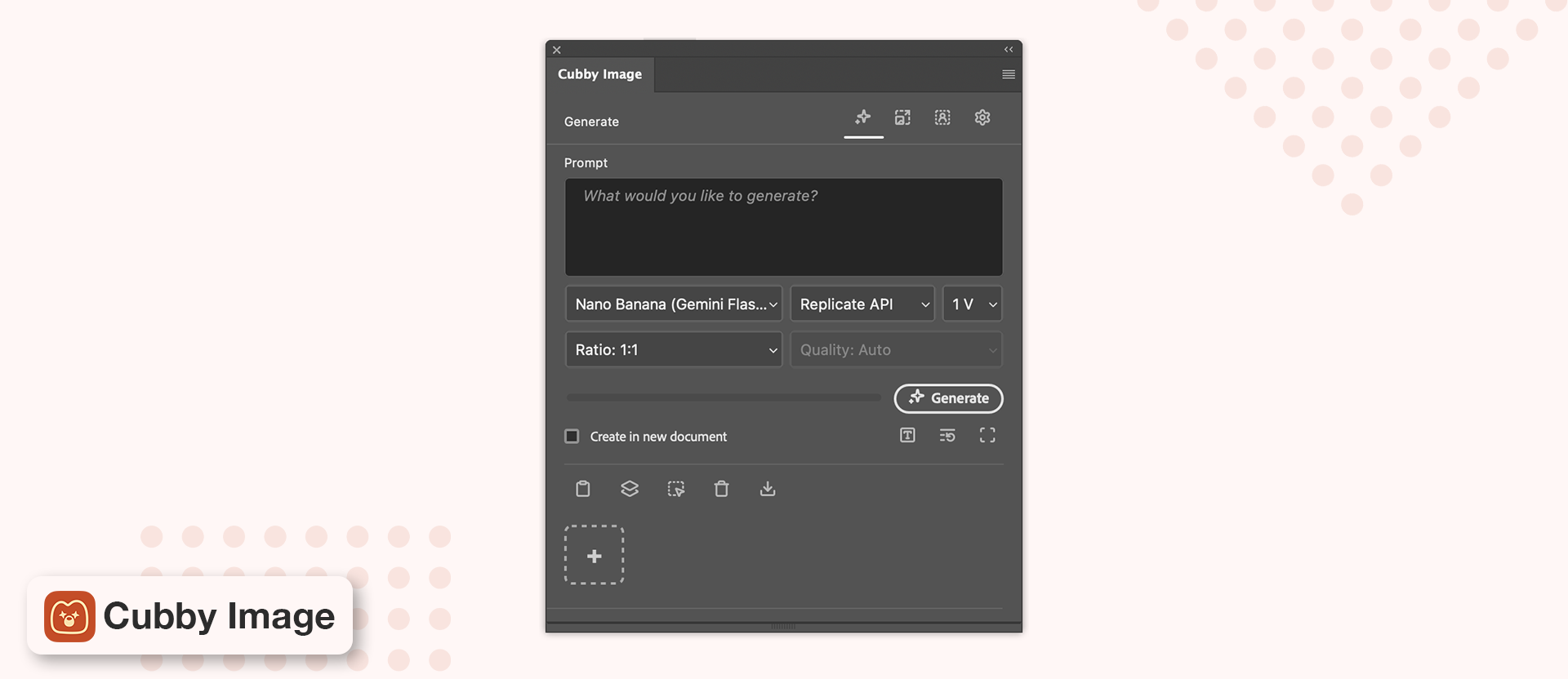
Installation Complete!
Troubleshooting
"Compatible app required" Error
If you see the message "You don't have a compatible app installed for this plugin":
This error usually means Creative Cloud cannot detect the correct version of Photoshop. Make sure you are using at least the minimum required version for Cubby Image. If you already have the correct version, try reinstalling Photoshop. In some cases, Photoshop may not be properly registered with Creative Cloud, which a reinstall usually fixes.
Plugin Doesn't Appear in Photoshop
If the plugin doesn't show up after installation:
- Make sure you installed it through the
.ccxfile (not manually) - Restart Photoshop completely
- Check if it appears in Creative Cloud Desktop → Plugins → Manage Plugins
Next Steps
Now that Cubby Image is installed, you'll need to set up your API keys: