Background Removal
Remove backgrounds from images automatically using AI-powered models. Cubby Image offers multiple professional background removal tools for precise, clean results.
Interface Overview
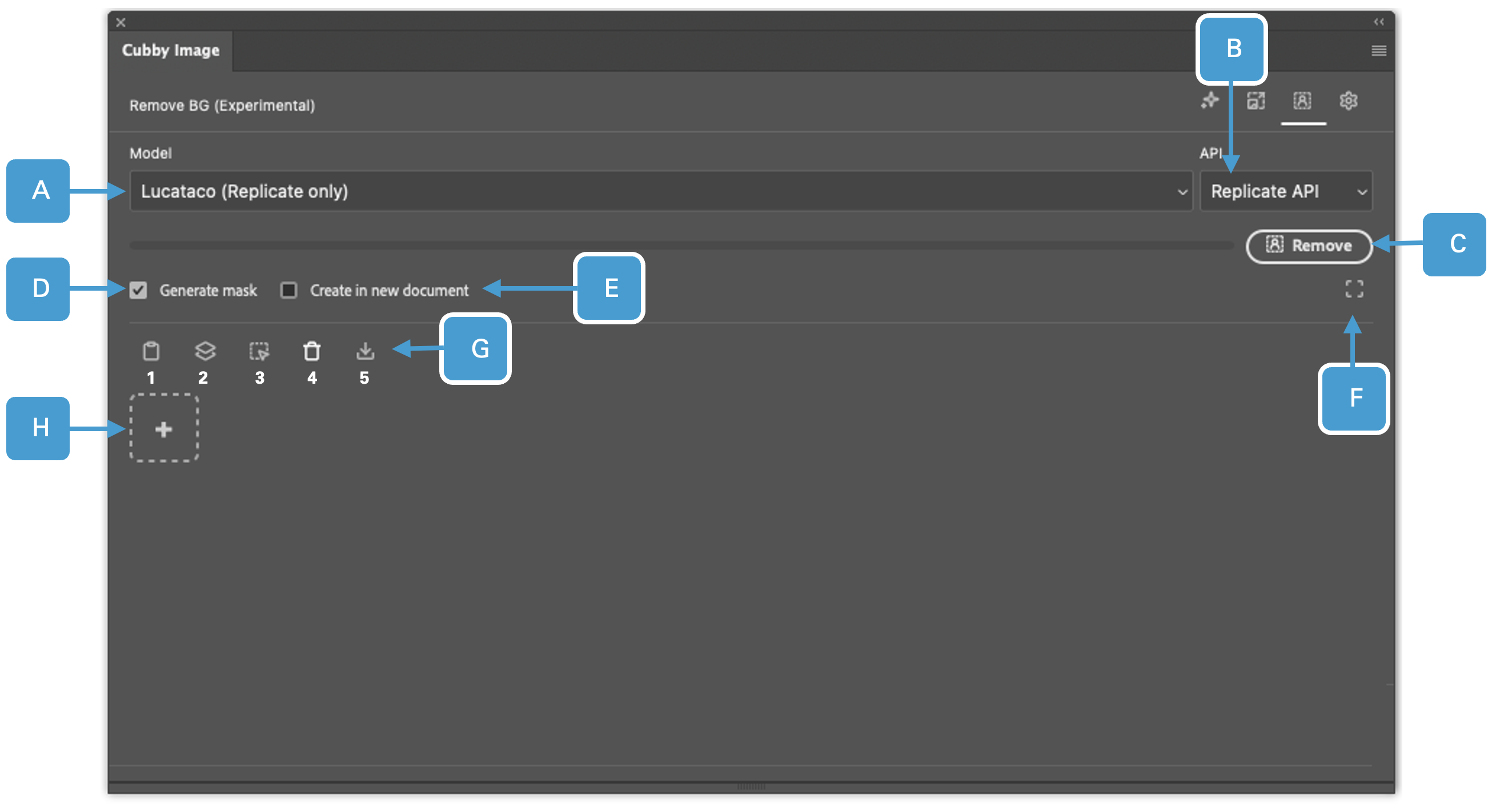
The Background Removal panel provides controls for automatically removing backgrounds from your images.
UI Elements Reference
| # | UI Element | Description |
|---|---|---|
| A | Model | A list of all available models. Please refer to the APIs and Models section to see which API provides access to which model. |
| B | API Provider | A list of all available API providers. Please refer to the APIs and Models section to see which API provides access to which model. |
| C | Remove Background | Click the Remove button to start removing backgrounds. |
| D | Generate Mask | Generate a mask over the input image. Recommended to retain image quality. |
| E | Create in New Document | Create the image in a new document. |
| F | Select All | Select the whole canvas. |
| G | Action Buttons | 1. Get Image from Clipboard: Copy an image and paste it right from your clipboard as a context image. 2. Get Layer: Paste an entire layer as a context image. 3. Get Selection: Create a selection on the canvas with the selection (brush) tool and paste it as a context image. The selection functions independent of the layer, meaning it does not matter what layer is currently selected, it will ignore it and sample a selection from the whole canvas. 4. Remove all Context Images: Remove all context images at once. 5. Paste all Context Images: Pastes all current context images on your canvas as separate layers. |
| H | Add Image | Add an image to remove a background from. |
Main Controls
Available Background Removal Models
The Background Removal panel includes the following AI models:
- BG Remover (851-labs) - Fast, precise background removal for general use
- RMBG 2.0 (Bria AI) - Professional-grade background removal with high accuracy
- BiRefNet v2 (ZhengPeng7) - Advanced refinement for accurate edge detection
- Remove BG (lucataco) - Efficient background removal with fast processing
- Remove BG (Recraft) - Designer-focused background removal with clean results
Please refer to the APIs and Models section for detailed information about which API provides access to which model.
API Provider Options
Available providers:
- Replicate - Supports all 5 models
- fal.ai - Supports RMBG 2.0 and BiRefNet v2
Gemini API does not support background removal.
Generate Mask Option
The Generate Mask option (D) creates a mask over the input image instead of removing the background directly. This is recommended to retain image quality and provides more flexibility for further editing.
Adding Images
Use the Action Buttons (G) and Add Image (H) to add images for background removal:
- Copy and paste from clipboard
- Add an entire layer from your document
- Create and add a selection from the canvas
- Import from file explorer
You can add multiple images and process them in batch.
How to Remove Backgrounds
Step 1: Select Your Image Layer
Make sure the layer containing the image you want to process is selected in Photoshop.
Step 2: Choose a Model
Select the background removal model from the dropdown. Each model has different strengths:
- For speed: Use BG Remover or lucataco Remove BG
- For professional quality: Use RMBG 2.0 or BiRefNet v2
- For design work: Use Recraft Remove BG
Step 3: Select API Provider
Choose your preferred API provider. Check the APIs and Models reference to see which models are available on each provider.
Step 4: Remove Background
Click the "Remove Background" button to process your image. The AI will automatically detect and remove the background, leaving your subject isolated.
Tips for Best Results
Image Quality
- Use high-resolution images for cleaner edge detection
- Ensure good contrast between subject and background
- Avoid heavily compressed or low-quality images
Subject Selection
- Works best with clear, well-defined subjects
- Human subjects, products, and objects with clear edges perform best
- Complex backgrounds or transparent objects may be challenging
Model Selection
For different use cases:
- Portraits: RMBG 2.0 or BiRefNet v2 for precise hair and edge detail
- Products: BG Remover or Recraft for clean, professional results
- Quick edits: lucataco or BG Remover for fast processing
- Complex subjects: BiRefNet v2 for advanced refinement
Workflow Integration
Using with Layers
After removing the background:
- The result appears as a new layer with transparency
- Original layer remains unchanged
- You can stack, blend, or composite as needed
Combining with Other Features
Background removal works great when combined with:
- Image Generation: Generate new backgrounds
- Upscaling: Enhance resolution after removal
- Layer Compositing: Create complex compositions
Troubleshooting
Poor Edge Quality
- Try a different model (BiRefNet v2 for complex edges)
- Use higher resolution source images
- Ensure good contrast between subject and background
Subject Partially Removed
- The subject may blend too much with the background
- Try adjusting image contrast before processing
- Use a different model that specializes in edge detection
Processing Too Slow
- Switch to a faster model (BG Remover or lucataco)
- Use fal.ai provider for potentially faster inference
- Process smaller images or downscale before removal
Model Comparison
| Model | Speed | Quality | Best For |
|---|---|---|---|
| BG Remover (851-labs) | ⚡⚡⚡ Fast | Good | General purpose, quick edits |
| RMBG 2.0 (Bria AI) | ⚡⚡ Medium | Excellent | Professional work, portraits |
| BiRefNet v2 | ⚡⚡ Medium | Excellent | Complex edges, refinement |
| Remove BG (lucataco) | ⚡⚡⚡ Fast | Good | Efficient removal, products |
| Remove BG (Recraft) | ⚡⚡ Medium | Very Good | Design work, clean results |