Upscaling Images
Enhance the resolution and quality of your images using AI upscaling. Cubby Image offers multiple professional upscaling models to deliver crisp, high-resolution results.
Interface Overview
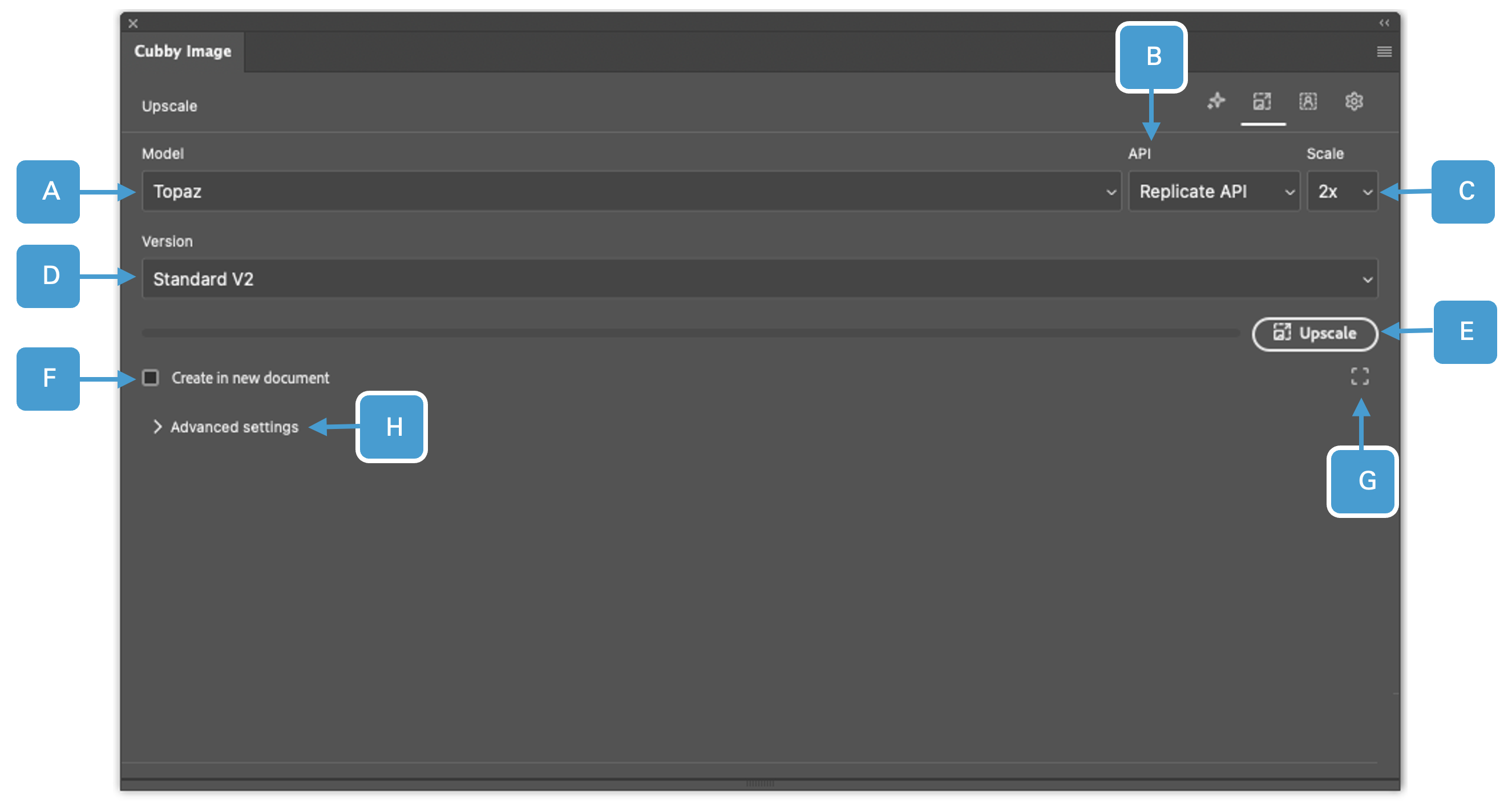
The Upscale panel provides controls for enhancing image resolution.
UI Elements Reference
| # | UI Element | Description |
|---|---|---|
| A | Model | A list of all available models. Please refer to the APIs and Models section to see which API provides access to which model. |
| B | API Provider | A list of all available API providers. Please refer to the APIs and Models section to see which API provides access to which model. |
| C | Scale | Set what size you want to upscale your image to. Models offer different scale ranges - some models support up to 10x upscaling. Topaz specifically offers 1x, 2x, 4x and 6x upscaling. |
| D | Version | If the model offers different versions you can select them here. |
| E | Upscale | Click the Upscale button to start upscaling images. |
| F | Create in New Document | Create the image in a new document. |
| G | Select All | Select the whole canvas. |
| H | Advanced Settings | Model specific settings. Please refer to the documentation of the model you are using to see what each setting is used for. |
Main Controls
Available Upscaling Models
The Upscale panel includes the following AI upscaling models:
- Topaz Labs - Industry-leading upscaler for sharper, high-resolution image enhancement
- Real-ESRGAN - Practical AI upscaling for real-world image restoration
- Clarity - AI-powered upscaling for enhanced image clarity
- Crisp - Sharp, detailed upscaling for crisp image enhancement (Recraft)
- Crystal - Premium upscaling with crystal-clear results (available on Replicate)
Please refer to the APIs and Models section for detailed information about which API provides access to which model.
API Provider Options
Available providers:
- Replicate - Supports all 5 upscaling models
- fal.ai - Supports Topaz Labs, Real-ESRGAN, Crisp, Clarity, and Crystal
Gemini API does not support upscaling.
Scale Settings
Available upscaling factors depend on the model you choose. Models offer different scale ranges - some support up to 10x upscaling. Topaz specifically offers 1x, 2x, 4x and 6x.
Common scale factors:
- 1x - Enhancement without size change
- 2x - Double the resolution (best for most use cases)
- 4x - Quadruple the resolution (great for print work)
- 6x - Six times the resolution (high quality for professional use)
- 10x - Maximum upscaling (available on select models)
Important: Larger scale factors take longer to process, use more API credits, and produce larger file sizes.
Advanced Settings
Model-specific settings (H) allow fine-tuning of the upscaling process. Please refer to the documentation of the model you are using to see what each setting does.
Start with default settings and only adjust advanced options if you need specific results.
How to Upscale an Image
Method 1: Upscale Entire Canvas
- Open your image in Photoshop
- Launch Cubby Image
- Switch to the Upscale tab
- Click Select All (or it's already selected by default)
- Choose your Scale factor (e.g., 2x or 4x)
- Select your API Provider
- Click Upscale
The upscaled image will appear as a new layer.
Method 2: Upscale a Selection
- Use any Photoshop selection tool to select the area you want to upscale
- Switch to the Upscale tab in Cubby Image
- Choose your Scale factor
- Select your API Provider
- Click Upscale
The upscaled selection will appear as a new layer with a mask.
Method 3: Upscale a Layer
- Select the layer you want to upscale
- Press Cmd/Ctrl + A to select all
- Follow steps from Method 1
Best Practices
Choosing the Right Scale
- 2x: Best for most use cases, balances quality and file size
- 4x: Great for print or detailed work
- 6x: Maximum quality for professional print or large displays
When to Upscale
Good use cases:
- Preparing images for print
- Enlarging small reference images
- Enhancing AI-generated images for final use
- Improving quality of compressed images
Not recommended:
- Extremely pixelated or low-quality source images
- Images with heavy compression artifacts (clean them up first)
Workflow Tips
- Work non-destructively: Upscaled images appear as new layers, so you can always go back to the original
- Upscale after editing: Do your main edits first, then upscale as a final step
- Test first: Try 2x before going to 4x or 6x to see if the quality gain is worth the extra cost and time
- Check the results: Zoom in to 100% to verify quality before continuing
Troubleshooting
Upscaling is slow
This is normal. Upscaling, especially at higher scale factors (4x, 6x), requires significant processing:
- 2x upscale: Usually completes in 30-60 seconds
- 4x upscale: Can take 1-3 minutes
- 6x upscale: May take 3-5 minutes or more
Out of memory errors
Large upscaling operations can require substantial memory:
- Try upscaling at a lower scale factor first
- Close other applications to free up memory
- Upscale in sections if working with very large images
Quality isn't improving
If upscaling doesn't improve your image:
- The source image may be too low quality or heavily compressed
- Try cleaning up noise/artifacts before upscaling
- Some AI-generated images may already be at optimal quality
API Costs
Upscaling uses API credits based on:
- Input image size
- Scale factor chosen
- API provider pricing
Higher scale factors (4x, 6x) typically cost more than lower ones (2x). Check your provider's pricing page for specific costs.
Next Steps
- Learn about generating images
- Check the APIs & Models reference for pricing information and model details