Settings
The Settings panel in Cubby Image allows you to manage your API keys, license key, view terms of use, and configure your plugin preferences.
Interface Overview
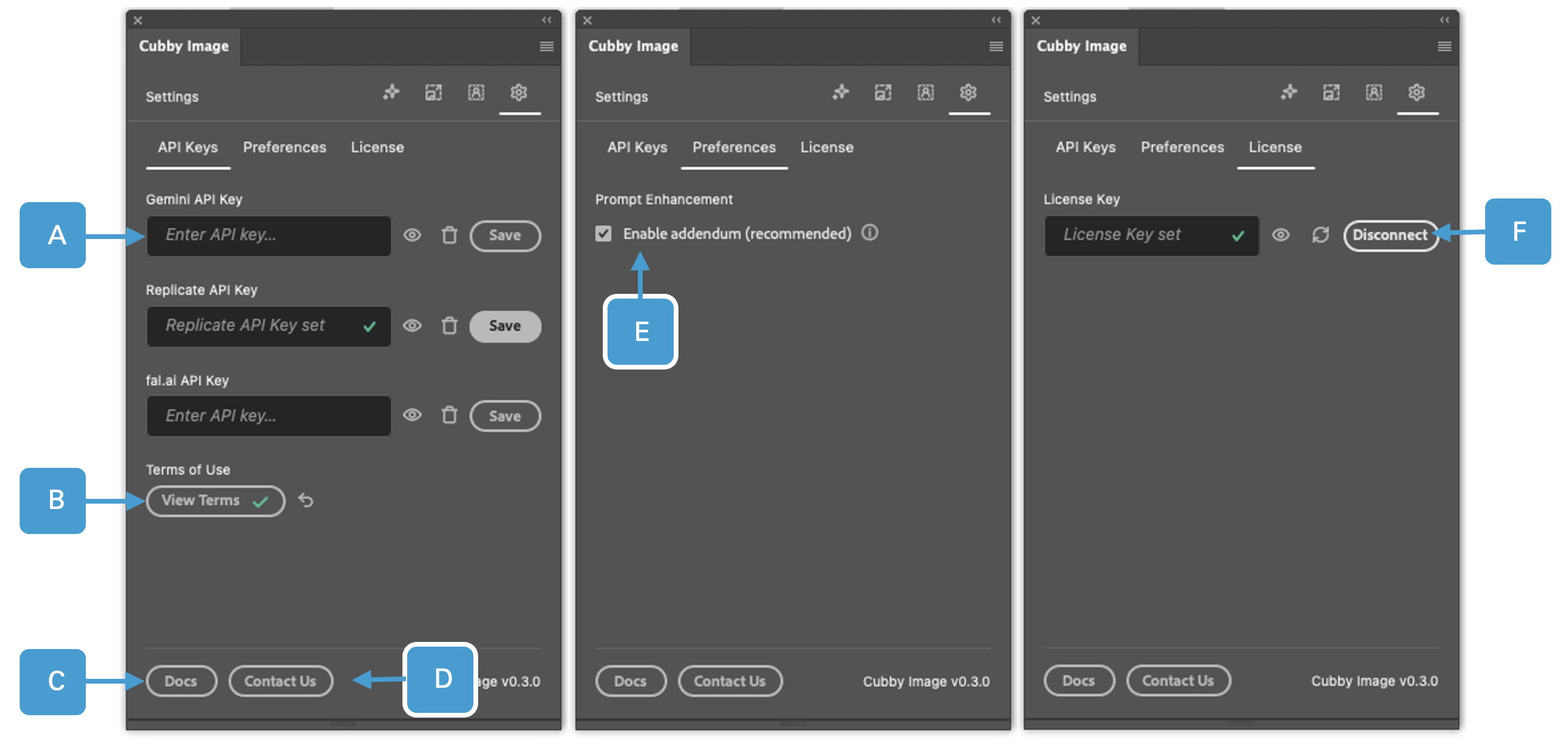
The Settings panel provides controls for managing your Cubby Image configuration.
UI Elements Reference
| # | UI Element | Description |
|---|---|---|
| A | API Key | Enter and save your API key. |
| B | View Terms / Reset Agreement | (Re)view the terms of use of Cubby Image. The indicator shows whether the terms were accepted (green) or not (red). You need to accept the terms to use Cubby Image. Clicking on the arrow resets your agreement to the terms of use. |
| C | Docs | Leads to the documentation for Cubby Image. |
| D | Contact Us | Leads to our contact form. |
| E | Preferences | Enable prompt addendum to improve inpainting and retain image composition. |
| F | License Key | Connect your license key to your device to use Cubby Image. |
Main Controls
License Key
The License Key field (F) is where you connect your Cubby Image license to your device.
Main Controls
License Key
The License Key field (F) is where you connect your Cubby Image license to your device.
- Enter your license key in the field
- Click Save to activate your license on this device
- You can use your license on up to 2 devices simultaneously
For more information about licensing, see the Installation Guide.
API Key Management
The API Key field (A) allows you to enter and save your API keys for each provider (Replicate, fal.ai, Gemini).
To add an API key:
- Enter your API key in the field
- Click Save to store it securely
- Click Delete to remove a saved key
Your keys are encrypted and stored locally within Photoshop's secure storage. They are never sent to Cubby Image servers - only to the API provider you choose when generating images.
Saved API keys cannot be shown for security reasons. The show/hide function only works for text you're currently entering before clicking Save.
Terms of Use
The View Terms button (B) allows you to review the Cubby Image Terms of Use at any time.
Indicator status:
- Green: Terms accepted ✓
- Red: Terms not accepted ✗
Reset Agreement: Click the arrow to reset your agreement to the terms of use. After resetting, you'll need to accept the terms again before using the plugin.
You must accept the Terms of Use to use Cubby Image. On first launch, you'll be prompted to review and accept them.
Documentation & Support
- Docs (C): Click to open the Cubby Image documentation
- Contact Us (D): Click to access our contact form for support
Preferences
The Preferences option (E) allows you to enable prompt addendum to improve inpainting and retain image composition during generation.
Managing Multiple API Keys
You can have API keys for all three providers set up simultaneously. Cubby Image will use the appropriate key based on which provider you select when generating images.
Benefits of Multiple Providers
- Model availability: Different models are available on different providers
- Pricing: Compare costs and choose the most economical option
- Reliability: Fall back to another provider if one is experiencing issues
- Performance: Some providers may be faster for certain models
Switching Between Providers
When generating images:
- Select your desired model
- Choose the API provider from the dropdown
- Generate your image
Cubby Image will automatically use the correct API key for your selected provider.
Security Best Practices
Keeping Your Keys Safe
✅ Do:
- Store keys only in Cubby Image's secure settings
- Use unique API keys for different applications
- Regenerate keys periodically for security
- Delete old keys you're no longer using
❌ Don't:
- Share your API keys with others
- Commit keys to version control (if scripting)
- Use the same key across multiple untrusted applications
- Leave unused keys active in your provider accounts
How Cubby Image Protects Your Keys
- Local storage: Keys are encrypted and stored locally in Photoshop's secure storage
- Direct communication: Keys are sent only directly to your chosen API provider
- No logging: Cubby Image never logs or stores your API keys on external servers
- Session security: Keys remain secure even if you share your Photoshop document
Troubleshooting
My API key isn't working
Common causes and solutions:
-
Formatting issues
- Make sure you clicked Save after pasting
- Check for extra spaces before or after the key
- Click the Show button to verify what's entered
-
Wrong key type
- Verify you're using the correct key for the selected provider
- Replicate keys start with
r8_ - Confirm the key is active in your provider's dashboard
-
Billing/Account issues
- Check that your provider account has billing set up
- Verify your account is in good standing
- Ensure you have sufficient credits/balance
-
Key revoked
- The key may have been deleted from your provider account
- Generate a new key and update it in Cubby Image
I can't see my saved key
This is expected behavior for security. Saved API keys cannot be displayed to prevent unauthorized access.
If you need to verify or change your key:
- Click Delete to remove the current key
- Paste a new key
- Click the Show button before saving to verify it's correct
- Click Save
Settings won't save
If you're having trouble saving settings:
- Make sure Photoshop has write permissions to its preferences folder
- Try restarting Photoshop
- Check that you're running a supported version (26.10.0+)
- Temporarily disable any security software that might block Photoshop
Terms acceptance reset
If you need to accept terms again after previously accepting:
- This may happen after plugin updates
- Click View Terms to review
- Click I Accept to continue using Cubby Image
Related
- API Keys Setup - How to obtain API keys
- APIs & Models - Which models are available on each provider